Two monitors can make work faster, whether you're comparing documents, keeping a call on one screen while you take notes on the other, or coding with a reference open. Setting them up well takes a little planning, though. This guide covers what you need, how to arrange the screens comfortably, and how to set them up on Windows and Mac.
What you need
- Two monitors. Matching models are easiest, because the size, height and resolution line up. Different screens work too, but text may look a different size on each.
- Enough video ports. Check the back of your computer. Most desktops have HDMI and DisplayPort outputs. Laptops often have one HDMI port plus USB-C or Thunderbolt ports that can carry video.
- The right cables or adapters. Match each monitor's input to a port on your computer, for example HDMI to HDMI or USB-C to DisplayPort.
- A dock (for many laptops). A USB-C or Thunderbolt dock gives a laptop extra display outputs and charges it through one cable.
Check your laptop first. Some laptops, including some MacBook models, can only drive one external display on their own. Look up your exact model's display support before buying a second screen or a dock.
How to arrange two monitors
If you use both screens equally, put them side by side and centered on you, so the seam between them sits straight ahead. Angle each one inward slightly so they face you.
If you use one screen most of the time, put that one directly in front of you and the second screen off to the side, angled toward you. This avoids turning your head all day.
Keep the tops level and at or slightly below eye level, about an arm's length away. Our guide to proper monitor height explains how to check.
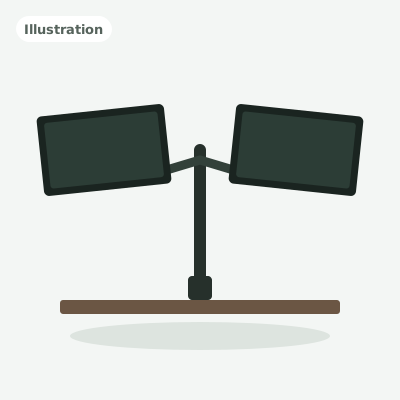
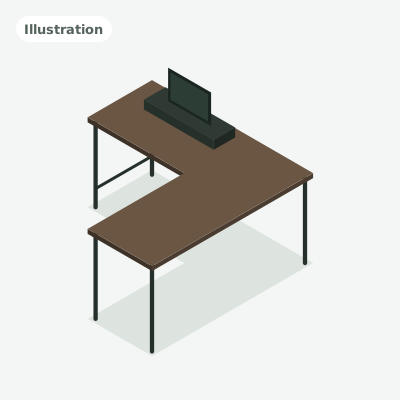
Make space. Two 27 in monitors side by side take up about 4 ft of width. If your desk is tight, a dual monitor arm lifts both screens off the desk and lets you line them up exactly. An L-shaped desk also gives you room for a wide setup.
How to set up dual monitors on Windows
- Connect both monitors and turn them on.
- Press Windows key + P and choose Extend so each screen shows different content.
- Open Settings > System > Display. Drag the numbered boxes so they match how the monitors sit on your desk.
- Select your main screen and tick Make this my main display.
- Set the resolution and scaling for each screen so text looks the same size on both.
How to set up dual monitors on a Mac
- Connect the monitors (through a dock if your Mac needs one).
- Open System Settings > Displays.
- Click Arrange and drag the screens to match your desk layout.
- To change the main display, drag the white menu bar strip onto the screen you want.
- Choose Extended display rather than mirroring for separate content on each screen.
Common problems
- Second screen not detected: check the cable and input source on the monitor, then use Detect in Windows display settings or reconnect on Mac.
- Mouse jumps at the wrong edge: the screens are arranged in the wrong order in display settings. Drag them to match your desk.
- Blurry text on one screen: set it to its native resolution and adjust scaling.
- Only one external screen works on a laptop: your laptop may support only one. A dock with DisplayLink support can add more on some models.